Last updated: October 2026
About this case: This is a real case handled in October 2026 by the IT company where WavesRank’s founder works. The client and the former provider are not named, and details that could identify them have been removed. The client agreed to us sharing this anonymised version. This article contains no affiliate links. See our Editorial Policy.
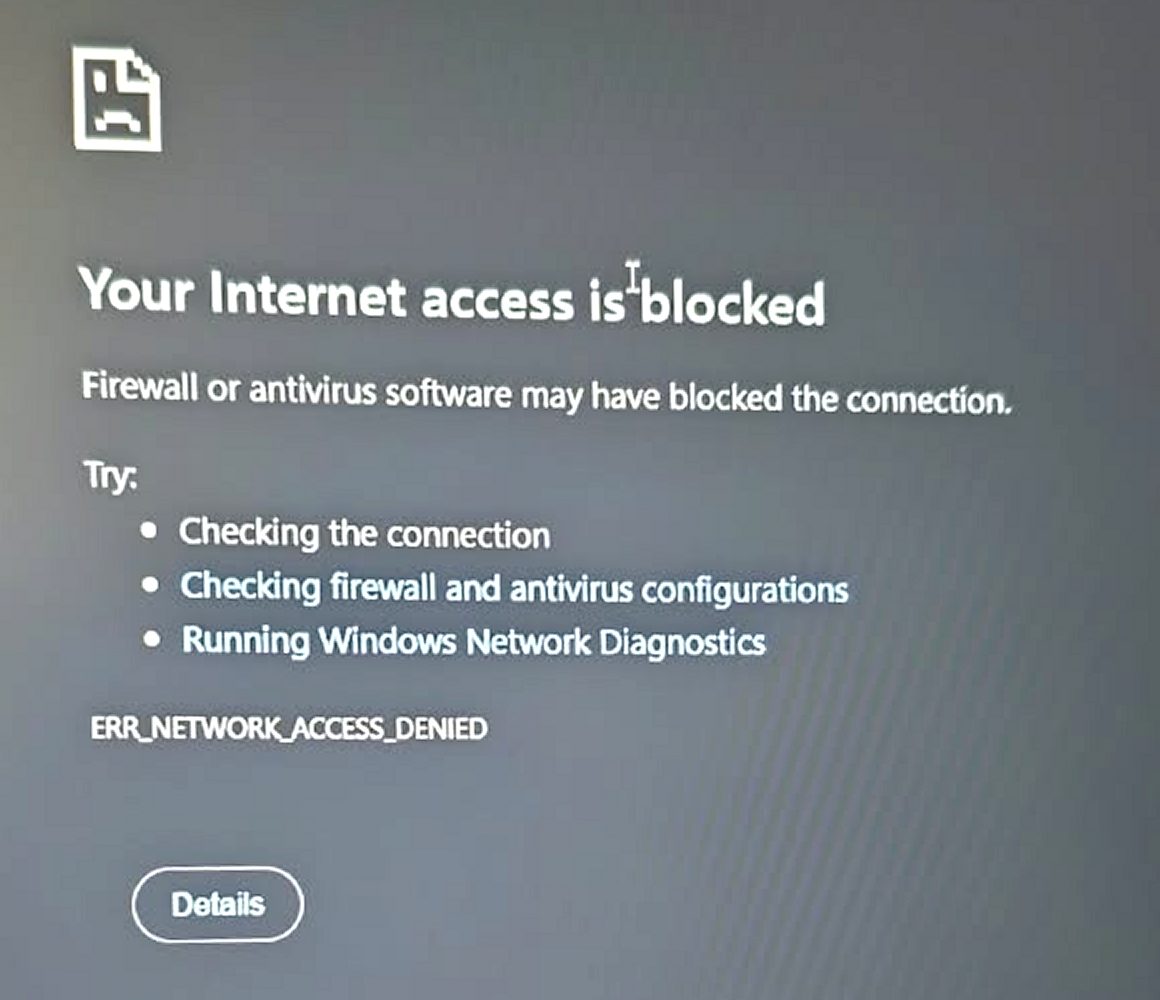
It started with a simple complaint: the internet wasn’t working and the Wi-Fi wouldn’t connect.
The company, a business in Saudi Arabia with about ten computers, had recently stopped working with its previous IT provider, which was based outside the country. When our engineers started looking at the “internet problem”, it turned out not to be an internet problem at all. Every computer still had the old provider’s remote-control software installed and running. The provider still had full administrator access to the company’s machines, and the business had no idea.
This article explains what we found, how we removed it, and how you can check whether a former IT provider still has access to your computers.
What we found
On every machine we checked, we found the same pattern:
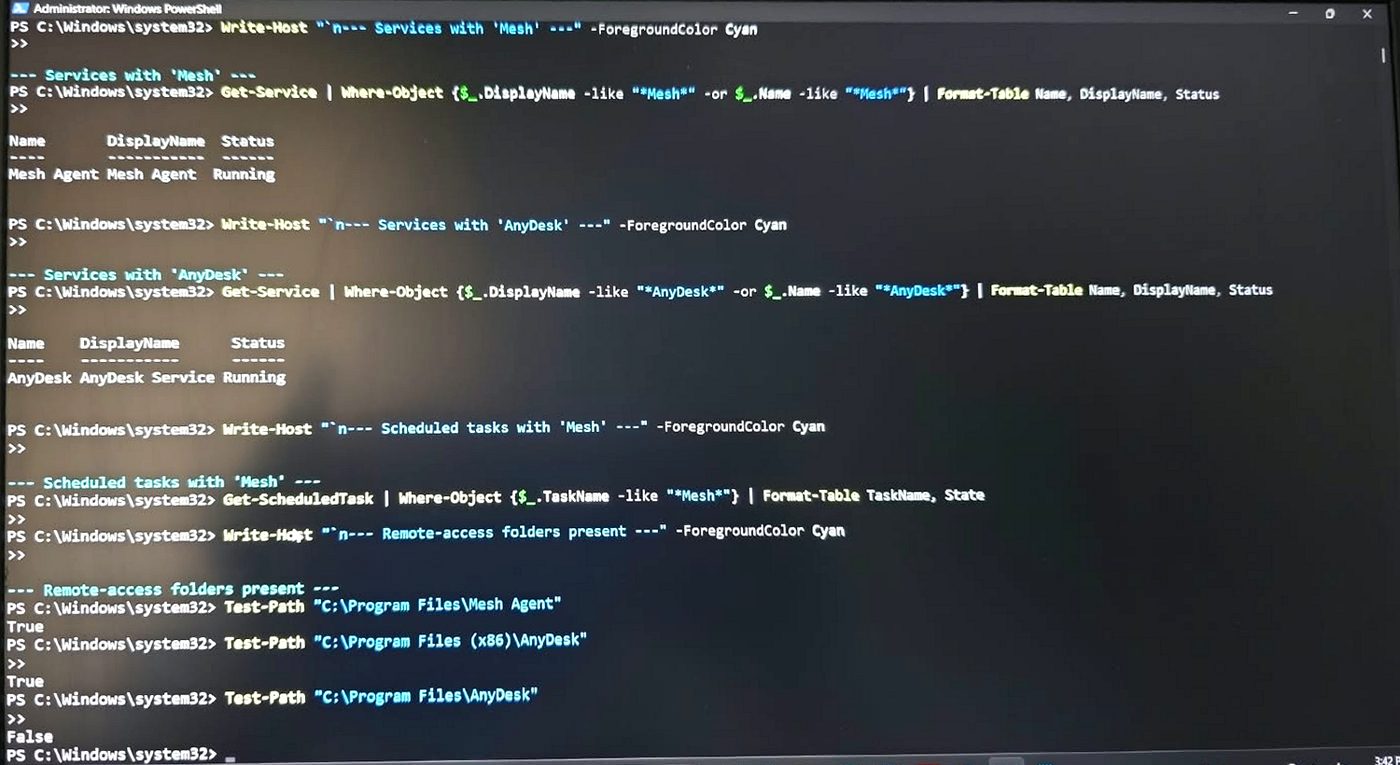
- A remote-management agent (“Mesh Agent”). This is the agent for MeshCentral, a legitimate open-source remote-management platform. It was running as a Windows service with full system rights and reporting to a server controlled by the former provider. Whoever controlled that server could see the screen, run commands and install software, at any time, without the user knowing.
- AnyDesk, a second remote-desktop tool, installed on some machines.
- Firewall rules named “Block Chrome” and “Block Browser” that stopped web browsers from reaching the internet. This is why staff saw “Your internet access is blocked” (ERR_NETWORK_ACCESS_DENIED) even though the connection itself worked.
- Wi-Fi adapters and admin tools disabled by the provider’s settings, and standard users restricted from changing them.
- Passwords set by the provider, which the business could not be sure nobody else knew.
The business owner did not know any of these tools were there. Nobody had removed them when the contract ended.
Remote-management tools like MeshCentral and AnyDesk are normal and useful when an IT provider is working for you. The problem is when they stay installed after the relationship ends. We cannot say why the access was left in place, and this article does not suggest any bad intent. But from a security point of view it does not matter: an open door is an open door.
Why this matters for any small business
When you change IT provider, most of the attention goes to the handover: passwords, licences, documentation. What is often forgotten is the access the old provider still has:
- Remote-management agents on every PC and server
- Admin accounts in Microsoft 365 or Google Workspace
- Logins to the firewall, router and Wi-Fi
- Control of your domain name and DNS
- Saved passwords in their own systems
Any one of these lets a former provider, or anyone who later breaks into their systems, get back into your business. Attackers increasingly target IT providers precisely because one breach gives them access to all of the provider’s clients.
How we removed it, step by step
We wrote a field guide for our engineers and used it on every machine. Here is a simplified version that a technically confident person can follow. Take a backup first, and if you are not comfortable running these commands, ask a trusted IT professional.
All commands are run in PowerShell as Administrator.
Step 1: Investigate before changing anything
Check which remote-access tools are installed and running:
Get-Service | Where-Object { $_.DisplayName -match "Mesh|AnyDesk|TeamViewer|ScreenConnect|Splashtop|Atera|NinjaRMM|Kaseya|N-able" } |
  Format-Table Name, DisplayName, Status
Get-ScheduledTask | Where-Object { $_.TaskName -match "Mesh|AnyDesk|TeamViewer" } |
  Format-Table TaskName, State
Write down everything you find. A scheduled task with the same name can be a “watchdog” that reinstalls the agent after you remove it.
Step 2: Check user accounts
Make sure no unknown admin account was left behind:
net user
net localgroup Administrators
dsregcmd /status | Select-String "AzureAdJoined","DomainJoined"
Any account you don’t recognise, especially in the Administrators group, is a red flag. If the computer shows as joined to a cloud tenant or domain that your business doesn’t own, it may still be managed by the old provider.
Step 3: Remove the remote agent properly
For the MeshCentral agent, we stopped the service, ran its built-in uninstaller, then removed anything left over:
Stop-Service "Mesh Agent" -Force -ErrorAction SilentlyContinue
Stop-Process -Name "MeshAgent" -Force -ErrorAction SilentlyContinue
& "C:\Program Files\Mesh Agent\MeshAgent.exe" -fulluninstall
sc.exe delete "Mesh Agent"
Get-ScheduledTask | Where-Object { $_.TaskName -like "*Mesh*" } | Unregister-ScheduledTask -Confirm:$false
Remove-Item "C:\Program Files\Mesh Agent" -Recurse -Force -ErrorAction SilentlyContinue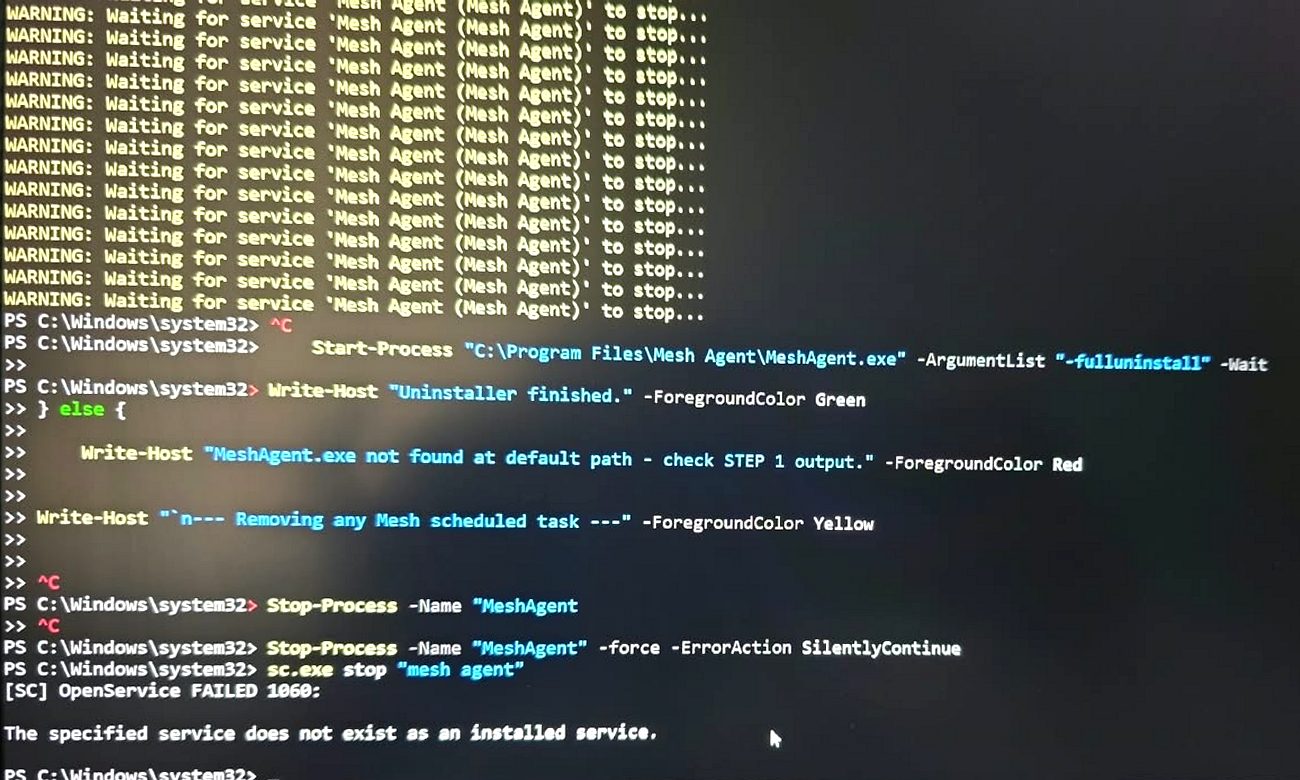
Other tools have their own uninstallers. AnyDesk, for example, can be removed with its --remove option. Only keep a remote tool if your business uses it and controls the account.
Step 4: Block the old server as a safety net
We added the provider’s server name to each PC’s hosts file, so even a hidden leftover copy of the agent could not connect back:
Add-Content -Path "C:\Windows\System32\drivers\etc\hosts" -Value "`n0.0.0.0 old-provider-server.example.com"Replace the example with the real server name, which you can usually find in the agent’s settings file before you remove it. Blocking the same name on your firewall protects every device at once.
Step 5: Remove the browser-block rules and restore the network
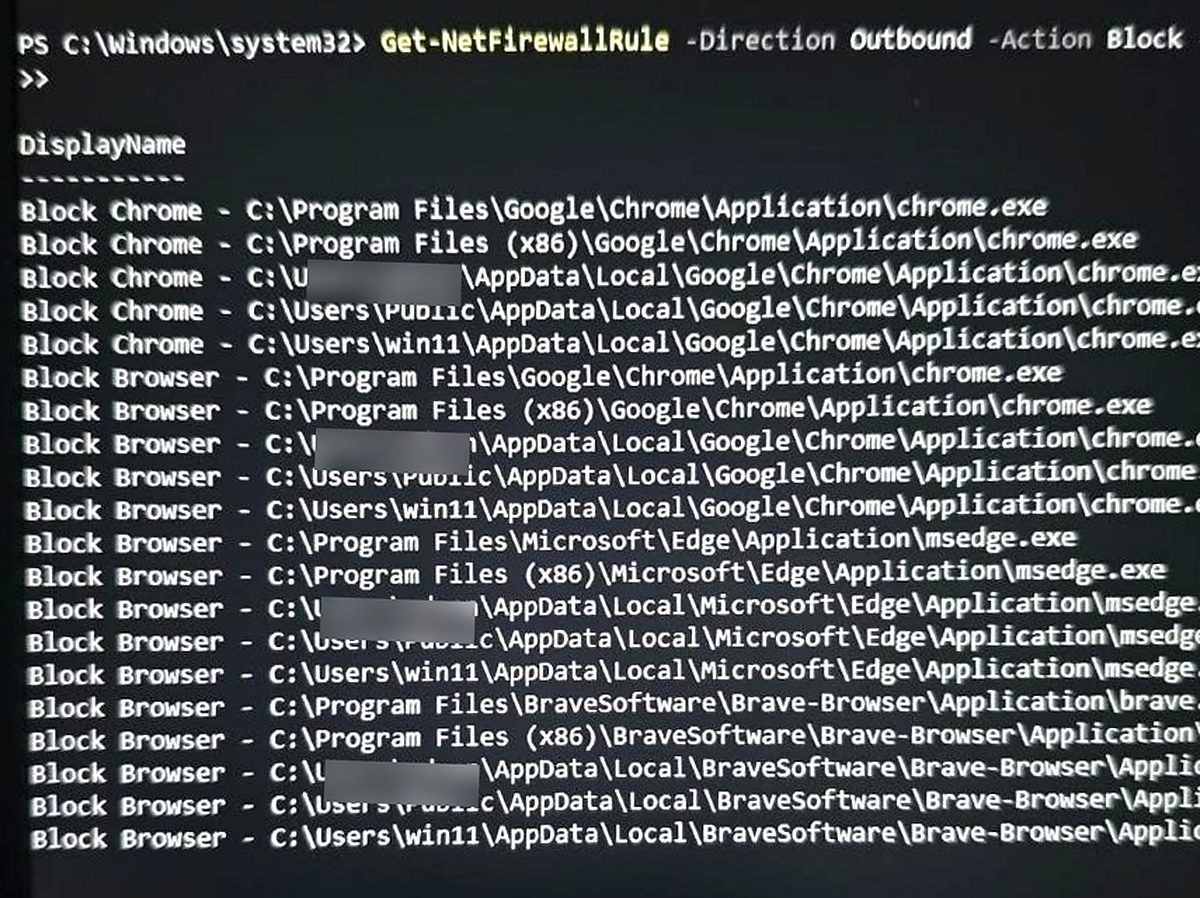
Get-NetFirewallRule -Direction Outbound -Action Block -Enabled True |
  Where-Object { $_.DisplayName -like "Block Chrome*" -or $_.DisplayName -like "Block Browser*" } |
  Remove-NetFirewallRule
Set-NetFirewallProfile -All -Enabled True
ipconfig /flushdns
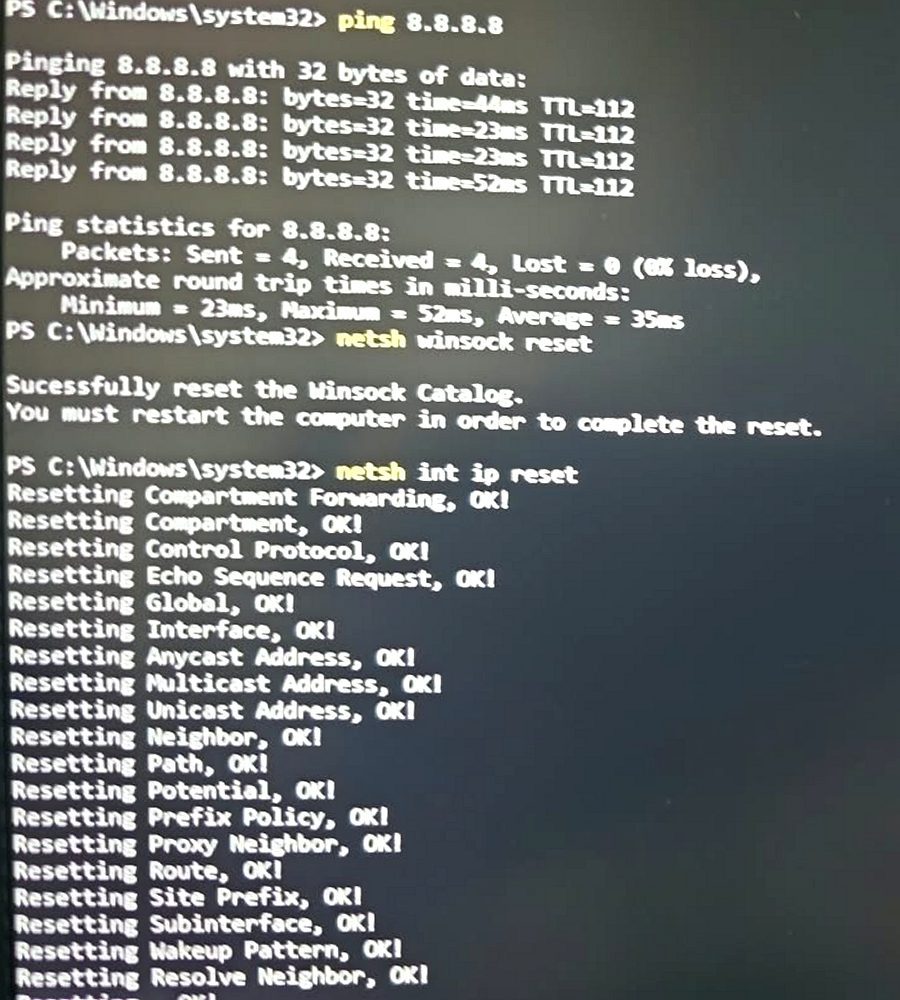
We only removed the bad rules; the Windows firewall stays on. If browsers were still blocked, netsh winsock reset followed by a restart cleared leftover network hooks. We also re-enabled the Wi-Fi adapters in Device Manager.
Quick tip: if ping 8.8.8.8 works but no browser loads, the problem is a block rule or a software hook, not your internet connection.
Step 6: Restart and verify
After a restart, we checked that the agent’s service and folder were gone, the block line was in the hosts file, browsers worked normally, and no unknown admin accounts remained. Each machine was recorded on a tracker as “cleaned and verified”.
Step 7: Change every password, from a clean device
Removing the software closes the remote door. But a provider with full system access could have seen passwords typed on those machines. So, using a clean device such as a phone, the business changed:
- Email / Microsoft 365 passwords, with two-factor authentication turned on. Email is the master key to everything else.
- Online banking passwords, also with two-factor authentication.
- Wi-Fi and router admin passwords.
- Every local account password on each PC, to passwords only the business holds.
A full antivirus scan finished each machine.
When a clean reinstall is safer
Cleaning a computer in place is fast and usually enough. But for the owner’s main computer, or any PC holding sensitive data, a clean Windows reinstall is the only way to be 100% sure nothing hidden remains. We offered the business both options.
Checklist: does your former IT provider still have access?
Use this whenever you change IT provider, or right now if you never checked:
- ☐ Remote-access software: check every PC and server for remote tools (MeshCentral/Mesh Agent, AnyDesk, TeamViewer, ScreenConnect, Splashtop, Atera, NinjaOne, Kaseya, N-able and others). Remove any your business does not control.
- ☐ Local admin accounts: list them on every machine and remove any you don’t recognise.
- ☐ Microsoft 365 / Google Workspace: check who has admin roles, remove the old provider’s accounts, and check for “partner” or “delegated admin” relationships in the admin centre.
- ☐ Firewall and router: change admin passwords and remove any remote-management or VPN accounts the provider used.
- ☐ Domain and DNS: make sure the domain name is registered to your business and you have the login.
- ☐ Backups and cloud services: confirm you own the accounts and the old provider’s access is removed.
- ☐ Passwords: change shared passwords the provider knew, and turn on two-factor authentication everywhere.
- ☐ Documentation: get a list of everything the provider installed or configured, in writing, as part of the exit.
Lessons for small businesses
- Treat IT provider offboarding like an employee leaving. Remove access on the last day, not months later.
- Own your admin accounts. Your business, not the provider, should own the Microsoft 365 tenant, the domain and the firewall, with the provider given access that you can remove.
- Know what is installed. Ask any provider for a written list of the tools they install and how to remove them.
- Use a password manager so shared passwords can be changed quickly and nobody keeps them in their own notes. See our guide to the best password managers for small business.
- Protect your email domain too. If someone else controls your DNS, they can also send email as you. Our DMARC setup guide explains how to lock that down.
Frequently asked questions
Is MeshCentral or AnyDesk malware? No. Both are legitimate remote-management tools used by IT teams worldwide. The risk comes from who controls them. If a tool reports to a server you don’t control, someone else can access your computer.
How do I know if my old IT provider can still access my computers? Check each computer for remote-management services, unknown admin accounts and remote tools in the installed programs list, and review admin roles in Microsoft 365 or Google Workspace. The checklist above covers the main places.
Should I contact the old provider? You can ask them in writing to confirm they have removed all access and to list what they installed. But do not rely on that alone; check and remove access yourself or with a new provider.
Do I need to reinstall Windows? Not always. Careful removal and verification is usually enough. For the most sensitive machines, a clean reinstall gives certainty.